End inbox tyranny: Use free will and these settings to get less email | Opinion
It’s the holiday season, and you have way too many things to check off your list. I can’t help you get your tasks done, but I can help free you from something you don’t need to do.
You don’t need to read all your emails.
Too many of us suffer from an inbox so full of unread messages that it’s practically useless. When we use email like this, it’s not a convenient way to get important information. It’s a stuffed, disorganized closet we’re scared to open, lest everything inside bury us alive.
Years ago some business and productivity types popularized a phrase with lots of promise: inbox zero. While they got the goal right (zero unread emails in your inbox!), I believe they suggested the worst possible path to getting there.
“Read and decide what to do with all of your email immediately!” they said.
No. As Oliver Burkeman, my favorite writer on how to use your time well, is fond of pointing out: Answering emails will just prompt people to write you back. Sometimes that’s what you want. A great deal of the time, it really isn’t.
What’s more, deciding whether to respond to email at all sucks up our energy. I would argue that doing this too much degrades the essential spark of life inside us all.
Come with me, and I’ll explain how you can use your email service provider’s features to receive less email.
Filter your email inbox aggressively
The first thing you need to know is that you can pre-emptively sort messages from your inbox. If you already know this, I’m encouraging you to do it more.
This goes so much deeper than unsubscribing from email lists. Whether you use Gmail, Outlook, a Yahoo-related provider (that includes Comcast and Xfinity email addresses), or something else, you can decide how and if you see messages from specific email senders.
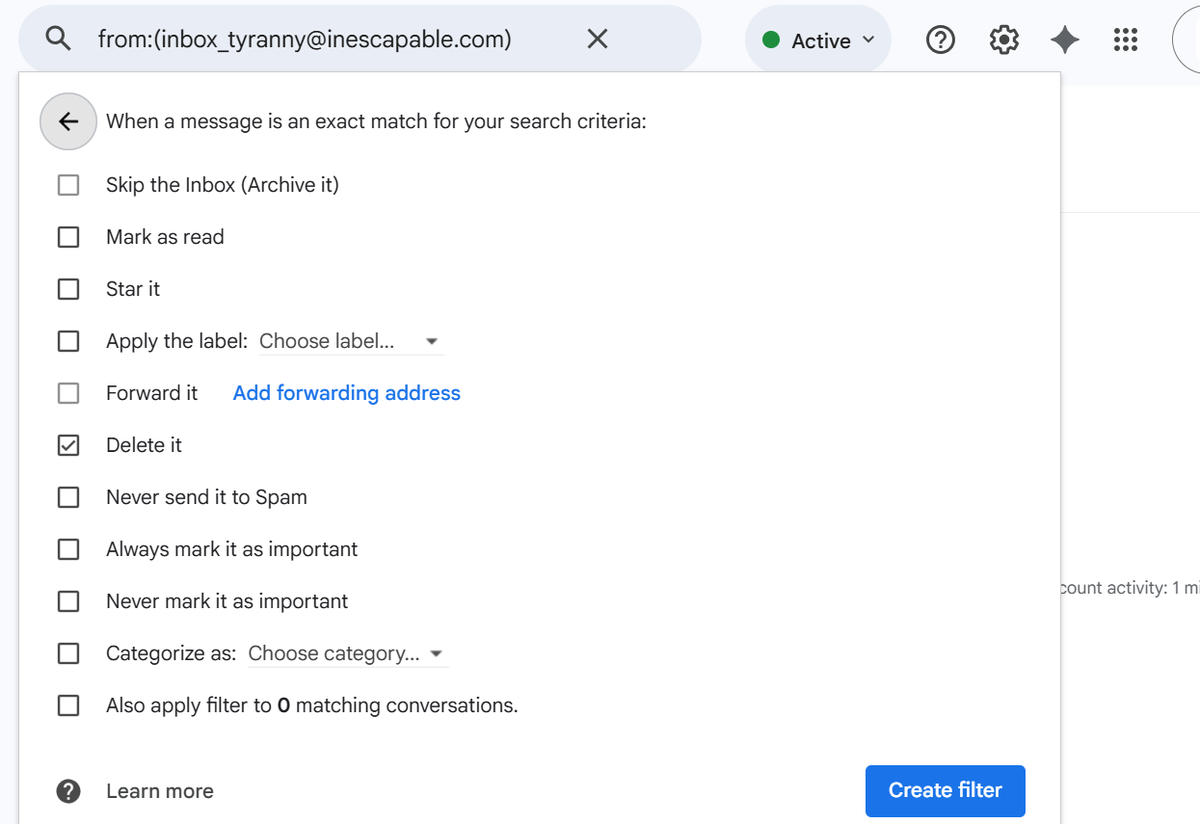
To do this, you must learn to use what I call filters. That’s also what Gmail calls them, but Outlook calls them rules. Your email provider will vary.
You can use filters to:
- Pre-emptively delete emails from certain senders. (Warning: This feels indescribably good.)
- Sideline emails to the archive or separate folders.
- Automatically mark emails as read.
Here’s an example of the steps for this from Gmail. From the inbox, I check the box next to a message. Then I click on the icon with three vertical dots at the top of the page (right under the email search bar). I select “filter messages like these.” This opens a field that shows I’m creating a filter for the email address of the sender. I click the “create filter” button at the bottom, and check the box next to “Delete it.” Finally, click the “create filter” button again.
That’s Select email > “Filter messages like these” > “Create filter” > “Delete it.” > “Create filter”
Filters aren’t just about reducing email cruft. They can also help emphasize the messages you really want to pay attention to.
You can use filters to:
- Make sure it never goes to the Spam folder.
- Automatically mark a message as important with a star, flag or color code.
- Forward it to an email address that someone actually checks.
Here’s what that could look like in Outlook. From my inbox, I would right-click on a message. I would hover the cursor over “Rules,” and then select “Create Rule.” Next I would choose “More options,” which opens the rule setting menu.
For the condition field, I would select “From” and then put in the email address of the sender. For the “Action” I would choose “Flag for follow-up.” Then I would select a time, like “Tomorrow,” when I would like a reminder to follow up on an email from that sender. Finally, I would check “Stop processing more rules” at the bottom of the page, and then click “Save.”
That’s Right click email from inbox > “Rules” > “Create Rule” > “More Options” > “From” sender email > “Action” > “Flag for follow-up” > “Tomorrow” > “Stop processing more rules” > “Save.”
There are separate tutorials for how to do this depending on which email service you use. Ask a friend, look online for a breakdown of the steps, or do what you need to do.
Just don’t email me about it.